

fabro run) executes a single workflow synchronously in your terminal. Server mode (fabro serve) starts an HTTP API that queues runs, streams events, and serves a web UI — so you can close your laptop and let workflows run.
Both modes use the same workflow engine, the same DOT files, and the same sandbox providers. The difference is how you interact with them.
Standalone vs. server mode
| Standalone | Server | |
|---|---|---|
| Command | fabro run workflow.fabro | fabro serve |
| Best for | Local development, one-off runs, CI/CD | Production, team use, running at scale |
| Execution | Synchronous, one run per process | Asynchronous, queued with configurable concurrency |
| Human-in-the-loop | Terminal prompts | Web UI or HTTP endpoints |
| Events | Printed to stderr | Streamed via SSE |
| Persistence | Checkpoint files only | SQLite database + checkpoint files |
| Web UI | Not available | Full React interface |
| Authentication | None | JWT and/or mTLS |
Starting the server
127.0.0.1:3000 by default. To also run the web UI:
| Flag | Default | Description |
|---|---|---|
--port | 3000 | Port to listen on |
--host | 127.0.0.1 | Host address to bind to |
--model | — | Override default LLM model |
--sandbox | — | Override default sandbox provider |
--max-concurrent-runs | 5 | Maximum concurrent run executions |
server.toml reference.
Submitting runs
In server mode, workflows are submitted via the REST API and executed in the background:Running in FIFO order, up to the concurrency limit.
Run lifecycle
- Submit —
POST /runscreates the run with statusQueued. - Schedule — The scheduler picks up queued runs up to
max_concurrent_runs. - Execute — The engine walks the graph, streaming events to all subscribers.
- Complete — The run transitions to
Completed,Failed, orCancelled.
Web UI
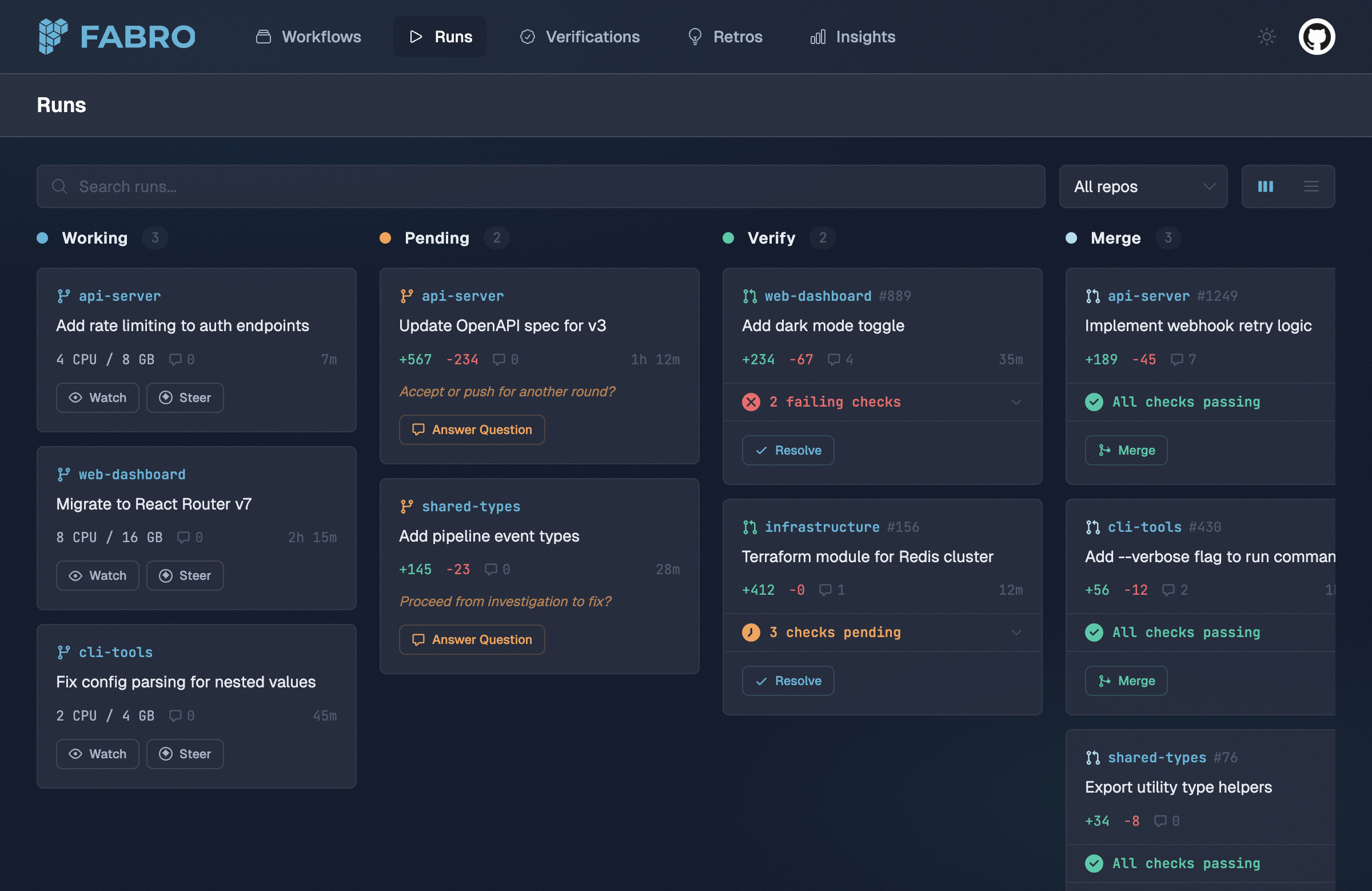
The web UI connects to the API server and provides:- Runs board — Monitor all active runs organized by status
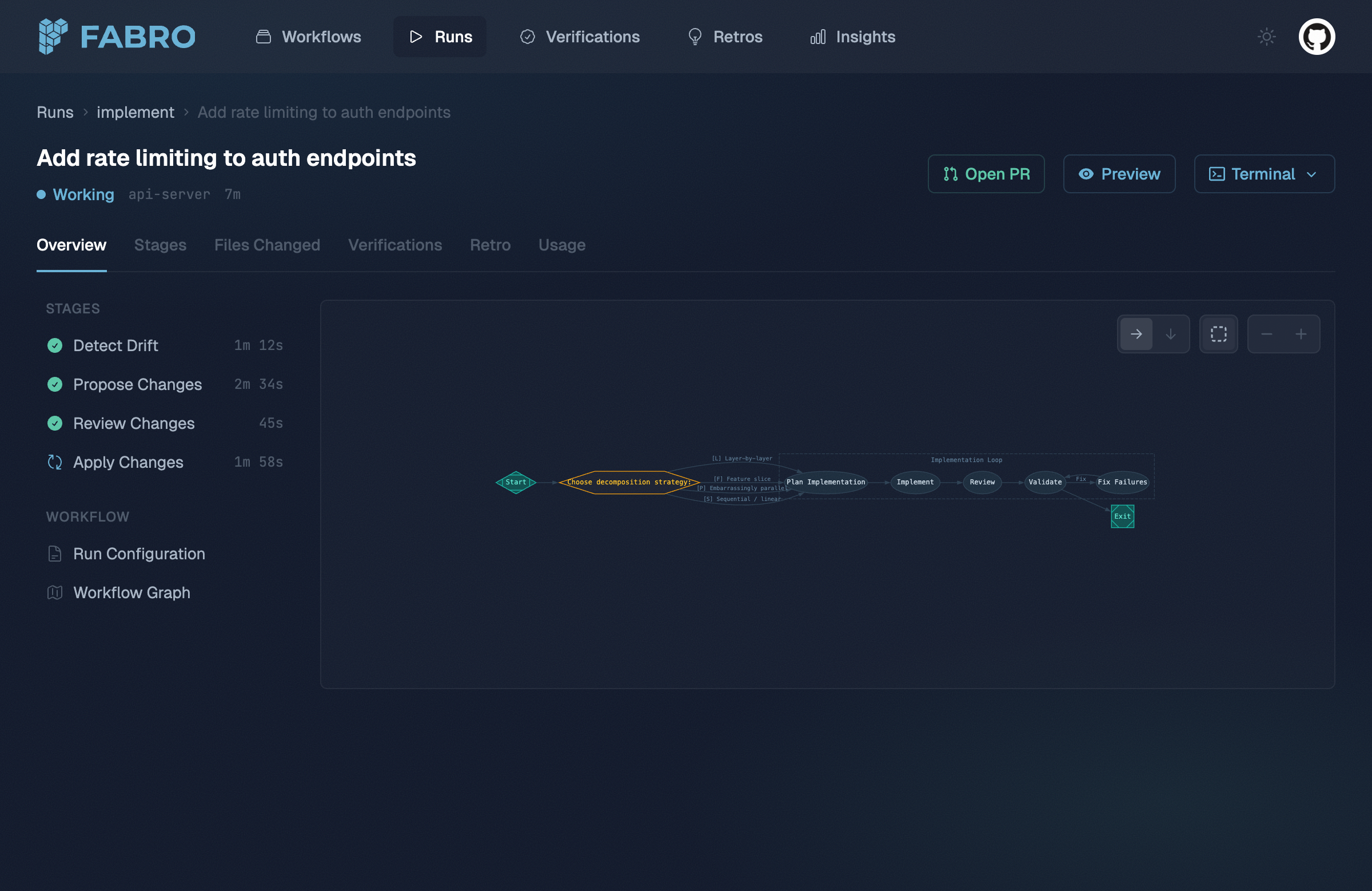
- Run detail — Real-time stage progress, event stream, diffs, and usage stats
- Start new run — Submit workflows from the browser
- Human-in-the-loop — Answer agent questions through the web interface
- Workflows — Browse available workflows, view their graphs, and see run history
- Insights — SQL-based analysis across runs via DuckDB
Event streaming
The API streams run events via Server-Sent Events (SSE). Every stage start, LLM call, tool invocation, and edge selection is emitted as a structured JSON event. Any HTTP client that supports SSE can subscribe — the web UI is just one consumer.Human-in-the-loop
In server mode, human-in-the-loop questions are served over HTTP instead of terminal prompts. The engine blocks the current stage until an answer is submitted, then continues execution. See the Human-in-the-Loop API reference for the polling and answer endpoints.Authentication
Server mode supports two authentication strategies, configurable inserver.toml:
- JWT — EdDSA-signed bearer tokens. Used by the web UI. See API Overview for token format.
- mTLS — Mutual TLS with client certificates. Used for service-to-service communication. See API Overview for setup.
Demo mode
Send theX-Fabro-Demo: 1 header on any API request to get static mock data with authentication disabled. The web UI enables this automatically with the FABRO_DEMO=1 environment variable. This lets you explore the UI without API keys or real workflow execution. See Demo Mode for details.
Pointing the CLI at a server
The CLI can delegate commands to a running Fabro server instead of executing locally. Setmode = "server" in ~/.fabro/cli.toml:
cli.toml
--mode flag:
fabro models list, fabro llm chat, and fabro exec. See CLI Configuration for the full options including mTLS setup.